
Play Web Games on Steam With Your Controller
BrowserPad puts a fast, controller-friendly game browser right into your Steam Library—complete with an in-game pause menu, a built-in mouse mode for game menus, and official Steam cover art.
Click the green button below and open BrowserPad-Setup.exe.
BrowserPad is added straight to your Steam Library with full cover art!
Optional: Install or uninstall using Command Prompt
powershell -Command "Invoke-WebRequest -Uri 'https://browserpad.pixos.co.uk/BrowserPad-Setup.exe' -OutFile \"$env:TEMP/BrowserPad-Setup.exe\"; Start-Process \"$env:TEMP/BrowserPad-Setup.exe\""
powershell -Command "Start-Process \"$env:LOCALAPPDATA/BrowserPad/BrowserPad-Setup.exe\" -ArgumentList '--uninstall'"
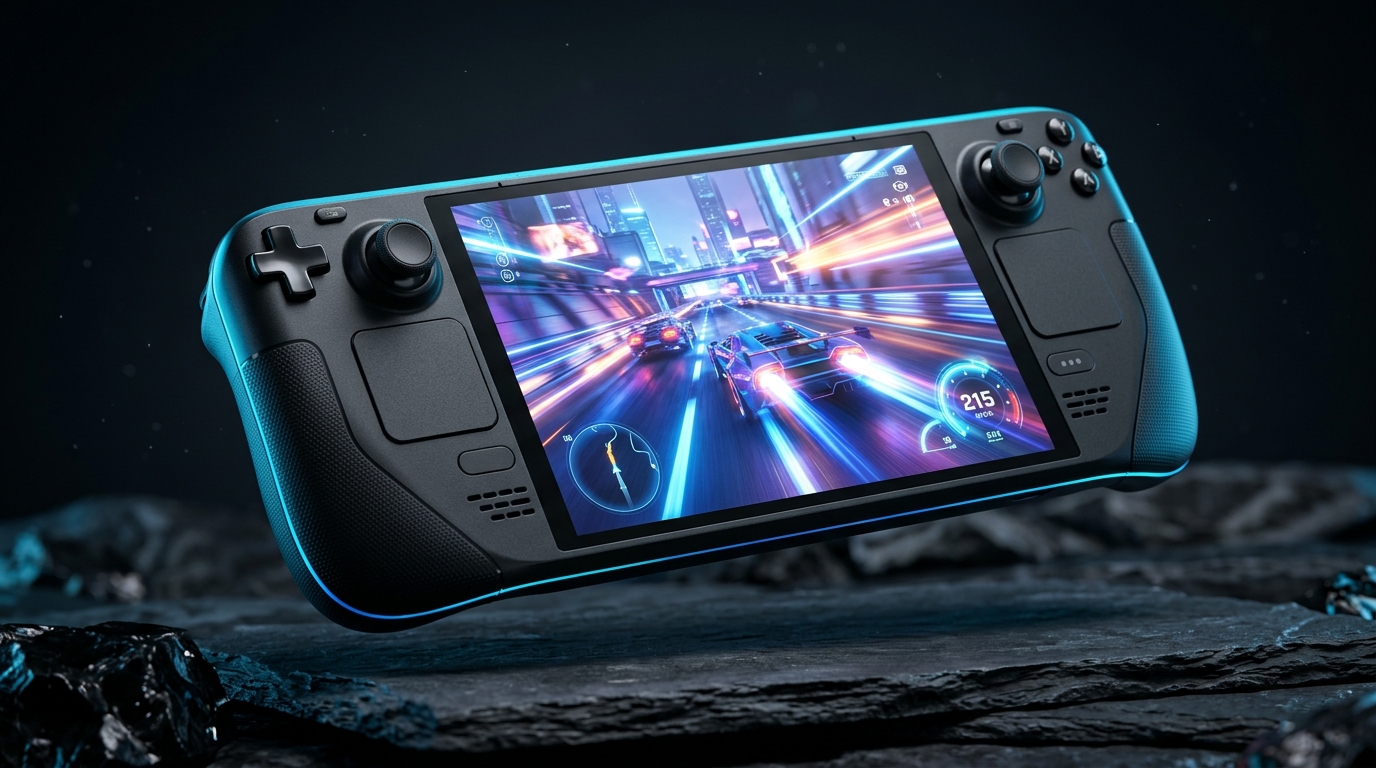
On Steam Deck, press STEAM > Power > Switch to Desktop and open this page.
Download the installer below and double-click it. Switch back to Gaming Mode and press Play!
Optional: Install or uninstall using Terminal (Konsole)
curl -sSL https://browserpad.pixos.co.uk/install.sh | bash
curl -sSL https://browserpad.pixos.co.uk/uninstall.sh | bash
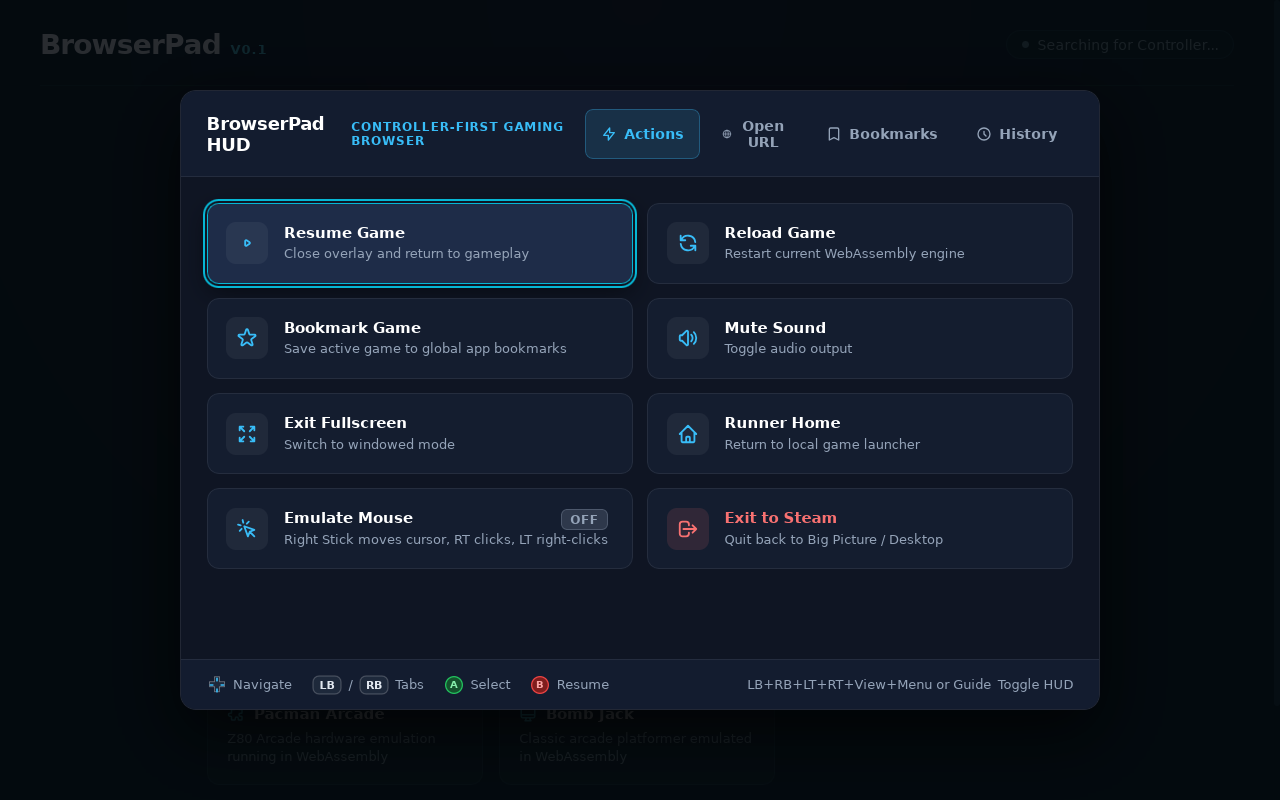
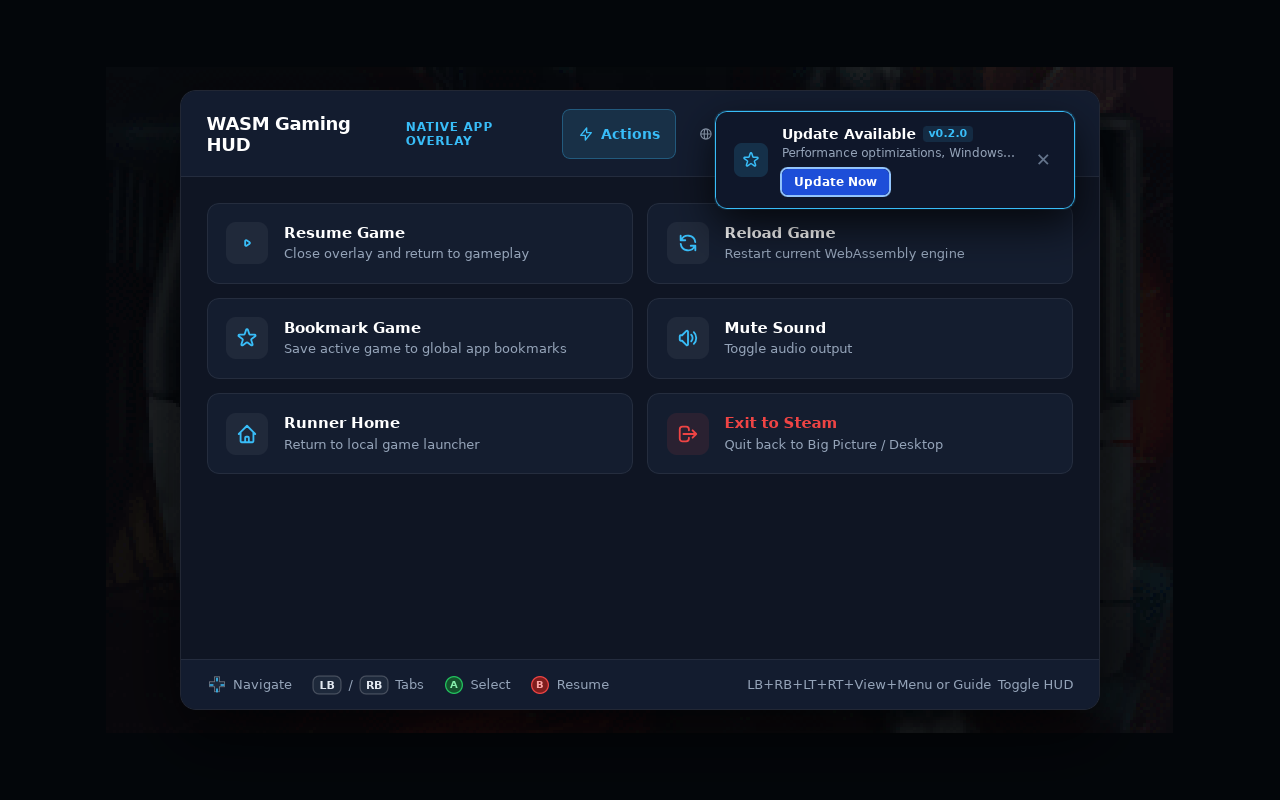
Everything You Need in One Controller Menu
Open the BrowserPad menu anytime while playing. Your game stays paused in the background so moving around the menu never messes up your game.
Works With Your Favorite Controller
BrowserPad automatically recognizes your controller and shows matching button icons. Click yours below to see how the shortcuts work:
Why hold the shoulder buttons too? Because games use Start and Select to pause or insert coins! Holding all four shoulder buttons with them means you can open the BrowserPad menu in any game without pressing a game button by mistake.
You can also press your controller's center Guide button (or F1 on a keyboard) to open the menu.
Hold both middle buttons for half a second (without shoulders) to exit straight back to Steam.
Playing a game whose start screen needs a mouse click? Turn on Emulate Mouse in the menu to control a cursor with your gamepad:
Feels Like a Real Steam Game
No ugly blank icons or heavy web browsers draining your battery. BrowserPad sets itself up in Steam automatically.
Automatic Steam Cover Art & Bookmarks
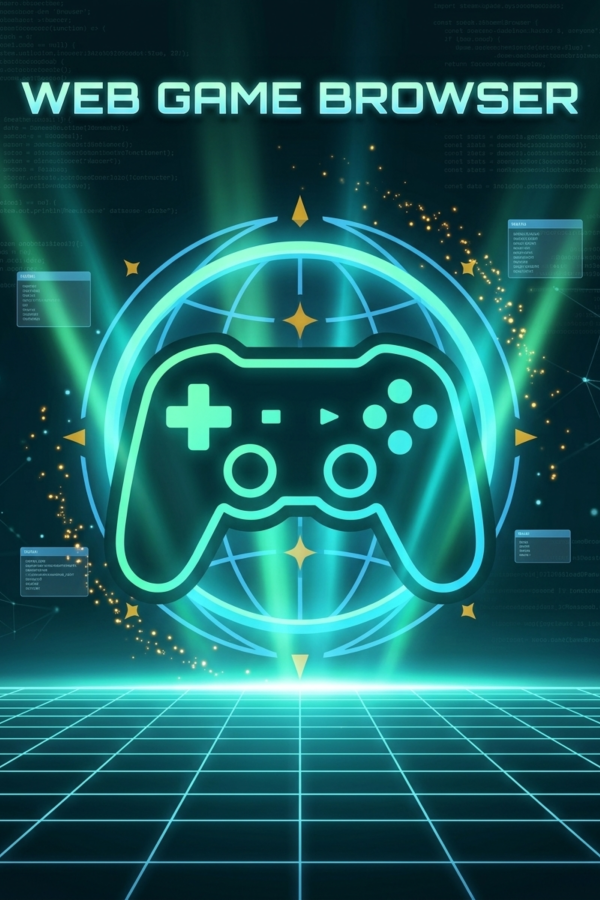
When you install BrowserPad, it adds posters, banners, and icons to your Steam Library automatically—no manual setup needed.

- Star Your Favorite Game to Auto-Start (★) Tap the Star next to any bookmark in the menu so that game launches right away whenever you press Play in Steam.
Uses 6× Less Memory Than Chrome
Regular web browsers run dozens of background tabs that eat up memory and drain your Steam Deck battery. BrowserPad only runs your game.
- 1-Click Updates Inside the App When a new version is ready, just click Update Now in the menu—no need to go back to Desktop Mode.
- Hides the Mouse Pointer While You Play As soon as you touch your controller, BrowserPad hides the mouse arrow so it never sits in the middle of your screen.
What Can You Play With BrowserPad?
If it runs in a web browser, you can play it from your couch or handheld with a controller.
PC & Arcade Ports
Play browser versions of classics like Carmageddon, Doom, Quake, and Pac-Man at a smooth 60 FPS.
itch.io & Web Games
Play thousands of free indie games on itch.io, Newgrounds, and Poki using your controller and Mouse Mode.
Online Emulators
Play retro arcade and console emulators on the web without your Start or Select buttons accidentally closing the game.
Your Favorite Game Links
Type any web game address into the menu, bookmark it, and play it in full screen whenever you want.
BrowserPad vs. Regular Web Browsers
Why BrowserPad is much easier to use on a Steam Deck or TV than Chrome or Edge.
| Feature | Regular Web Browser | BrowserPad |
|---|---|---|
| In-Game Controller Menu | No — Needs a keyboard & mouse | Yes — Open anytime with your controller |
| Built-In Mouse Mode | No — Stuck on click-only menus | Yes — Move & click using Right Stick + Triggers |
| Pauses Game While in Menu | No — Game keeps pressing buttons | Yes — Stops buttons from hitting the game |
| Steam Library Cover Art | Blank grey box in Steam | Full posters, banners & icons added automatically |
| Hides Mouse Arrow | Pointer stays stuck on screen | Hides automatically when using a controller |
| Memory & Battery Use | Heavy (180 – 300 MB+) | Super Light (30 – 50 MB) |
Common Questions
Quick answers on how to install and play.
How do I open the menu while playing a game?
Hold down all 4 shoulder buttons + Select + Start at the same time for a split second, or press your controller's center Guide / Home button (or F1 on a keyboard).
What if a game needs a mouse to click "Start Game"?
Open the BrowserPad menu and click Emulate Mouse. Your Right Stick will move a mouse cursor, your Right Trigger will Left Click, and your Left Trigger will Right Click. Turn it back off whenever you're ready to play!
How do I make my favorite game start automatically from Steam?
While playing the game, open the BrowserPad menu and click Bookmark Game. Then switch to the Bookmarks tab and click the Star (★) next to that game. Next time you launch BrowserPad in Steam, it will load that game right away!
How do I quit a game and go back to Steam?
Open the BrowserPad menu and choose Exit to Steam, or simply hold Select + Start together for half a second.